Privacy has become one of the biggest concerns for smartphone users. Messaging apps like WhatsApp contain personal conversations, photos, videos, business chats, financial information, and private documents that most people want to keep secure. Although WhatsApp includes its own privacy features such as fingerprint and biometric authentication on supported devices, many users look for additional ways to protect their chats from unauthorized access.
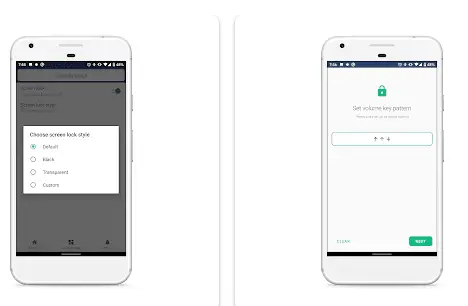
One unique solution is Lock Your WhatsApp with Volume Button, commonly known as Oops! AppLock. Unlike traditional app locks that require a PIN, password, or fingerprint, this application introduces a creative method of securing WhatsApp by allowing users to unlock the app using a custom sequence of volume button presses.
This article provides a complete guide to Oops! AppLock, including its features, setup process, advantages, disadvantages, security considerations, customization options, privacy benefits, troubleshooting tips, and comparisons with other app lock solutions. If you are looking for a different way to protect your WhatsApp conversations, this guide explains everything you need to know.
What is Oops! AppLock?
Oops! AppLock is an Android application that protects WhatsApp using a unique unlocking method. Instead of entering a PIN code or drawing a pattern, users create a personalized sequence using the physical volume buttons on their phone.
For example, your unlock sequence could be:
- Volume Up → Volume Down → Volume Up
- Volume Down → Volume Down → Volume Up
- Volume Up → Volume Up → Volume Down → Volume Down
Only users who know the correct sequence can unlock WhatsApp.
Because this method uses hardware buttons rather than an on-screen keypad, many users find it both convenient and discreet.
Why Protect WhatsApp?
WhatsApp stores a large amount of personal information, including:
- Private conversations
- Family chats
- Business messages
- Photos
- Videos
- Voice notes
- Documents
- Contact information
- Payment details (where available)
If someone gains access to your phone, they may also gain access to this information. Adding another layer of protection helps reduce that risk.
Key Features of Oops! AppLock
1. Volume Button Unlock
The main feature is the ability to unlock WhatsApp using a custom volume button pattern.
Unlike traditional app locks, there is no visible keypad, making the unlocking process feel different from standard security methods.
2. Custom Lock Sequence
Users can create their own volume button combination.
Examples include:
- Up → Down → Up
- Up → Up → Down
- Down → Up → Down → Up
- Up → Down → Down → Up
Choosing a longer sequence generally makes it harder for someone else to guess.
3. WhatsApp Protection
Once activated, WhatsApp cannot be opened until the correct volume sequence is entered.
This prevents casual access when someone borrows your phone.
4. Simple User Interface
Oops! AppLock is designed to be easy to use.
Most users can complete the setup within a few minutes without needing technical knowledge.
5. Lock Screen Customization
Some versions allow users to customize the lock screen.
Customization options may include:
- Background image
- Theme colors
- Icons
- Wallpapers
- Interface style
These settings allow users to personalize the app.
6. Intruder Selfie
Some versions include an Intruder Selfie feature.
If someone repeatedly enters the wrong unlock sequence, the front camera may capture a photo automatically (depending on device compatibility and granted permissions).
This feature can help users identify unauthorized access attempts.
7. Stealth Mode
Certain versions offer Stealth Mode.
When enabled, the application can hide its icon from the app drawer, making it less obvious that an additional app lock is installed.
This adds another layer of privacy.
8. Lightweight Performance
Oops! AppLock is generally lightweight and designed to use minimal system resources, so it should have only a small impact on overall device performance.
How to Install Oops! AppLock
- Open the Google Play Store.
- Search for Oops! AppLock or Lock WhatsApp with Volume Button.
- Install the application.
- Launch the app.
- Grant the required permissions, such as accessibility access if requested.
- Create your preferred volume button sequence.
- Confirm the sequence.
- Enable protection for WhatsApp.
- Test the lock before relying on it for daily use.
How Does It Work?
Once configured:
- Open WhatsApp.
- The app lock screen appears.
- Press the volume buttons according to your saved sequence.
- If the sequence matches, WhatsApp unlocks.
- If the sequence is incorrect, access remains blocked.
The process takes only a few seconds.
Advantages of Volume Button Lock
Faster Unlocking
Some users find pressing physical buttons quicker than typing passwords.
Discreet Security
There is no visible PIN entry screen, reducing the chance of someone observing your password.
Unique Lock Method
Few app locks use hardware buttons, making this approach feel different from traditional app security.
Easy to Remember
A simple volume pattern can be easier to remember than a complex password.
Additional Privacy Layer
Even if someone knows your phone’s screen lock, they may still be unable to access WhatsApp without the correct volume sequence.
Security Considerations
While innovative, volume button locking should not be viewed as stronger than modern biometric authentication.
For the best protection:
- Use a strong phone lock (PIN, password, or biometric authentication).
- Enable WhatsApp’s built-in app lock feature if your device supports it.
- Choose a longer and less predictable volume button sequence.
- Avoid using simple patterns like “Up → Up.”
Security also depends on how securely the app is implemented and the permissions it requires.
Potential Limitations
Like any app, Oops! AppLock has some limitations.
Easier to Guess
Very short sequences may be guessed more easily than long passwords.
Accidental Button Presses
Users may occasionally trigger parts of the sequence unintentionally while adjusting volume.
Device Compatibility
Some Android manufacturers restrict background or accessibility features, which may affect how third-party app locks function.
Limited Scope
Many versions focus mainly on WhatsApp rather than providing a full-featured app-lock solution for every application.
Who Should Use Oops! AppLock?
This app may be suitable for:
- Students
- Office workers
- Business professionals
- Parents
- Content creators
- Anyone who shares their phone with family or friends
- Users who want an alternative to traditional PIN-based app locks
Tips for Better Security
- Use a unique volume sequence that is not easy to guess.
- Do not share your unlock pattern with others.
- Keep the app updated.
- Review requested permissions carefully.
- Combine it with your device’s built-in screen lock for stronger overall protection.
Troubleshooting
WhatsApp Does Not Lock
- Ensure the app has all required permissions.
- Check that accessibility services are enabled if required.
- Restart your device and test again.
Forgot the Volume Sequence
Some versions provide a recovery method through your registered account or app settings. If recovery is not available, you may need to reset the app, which could remove its settings.
App Stops Working
- Update the app to the latest version.
- Restart your phone.
- Disable battery optimization for the app if background services are being restricted.
Comparison with Other App Locks
Oops! AppLock
Pros
- Unique volume button unlock
- Lightweight
- Easy to use
- Creative security method
Cons
- May offer fewer features than comprehensive app lockers.
- Security depends on the strength of the chosen sequence.
Traditional App Lock Apps
Common features include:
- Fingerprint unlock
- Face unlock
- PIN codes
- Pattern locks
- Lock multiple apps
- Fake crash screens
- Intruder detection
- Advanced customization
These apps may provide broader functionality but often rely on more familiar unlocking methods.
Privacy Tips
When installing any app lock:
- Download only from trusted sources like the Google Play Store.
- Read the privacy policy before granting permissions.
- Avoid unofficial or modified APKs from unknown websites.
- Regularly review which permissions the app has access to.
Frequently Asked Questions
Can Oops! AppLock lock apps other than WhatsApp?
Some versions may support additional applications, while others focus primarily on WhatsApp. Check the app’s feature list for your installed version.
Does it replace WhatsApp’s own app lock?
No. It is an additional layer of protection and does not replace WhatsApp’s built-in security features.
Is it safe?
It can be safe when downloaded from a trusted source and when appropriate permissions are granted. As with any security app, users should review permissions and keep the app updated.
Will it slow down my phone?
The app is generally lightweight, though performance can vary depending on your device and Android version.
Conclusion
Oops! AppLock – Lock Your WhatsApp with Volume Button offers a creative alternative to traditional app-lock methods by allowing users to unlock WhatsApp with a custom sequence of volume button presses. Its simple interface, lightweight design, and unique approach make it appealing for users who want an extra layer of privacy without relying solely on PINs or patterns.
While it can improve privacy, it should be viewed as a complement—not a replacement—for your phone’s built-in security features. Using a strong screen lock, enabling WhatsApp’s native app lock where available, and downloading apps only from trusted sources remain the best practices for protecting your personal data.