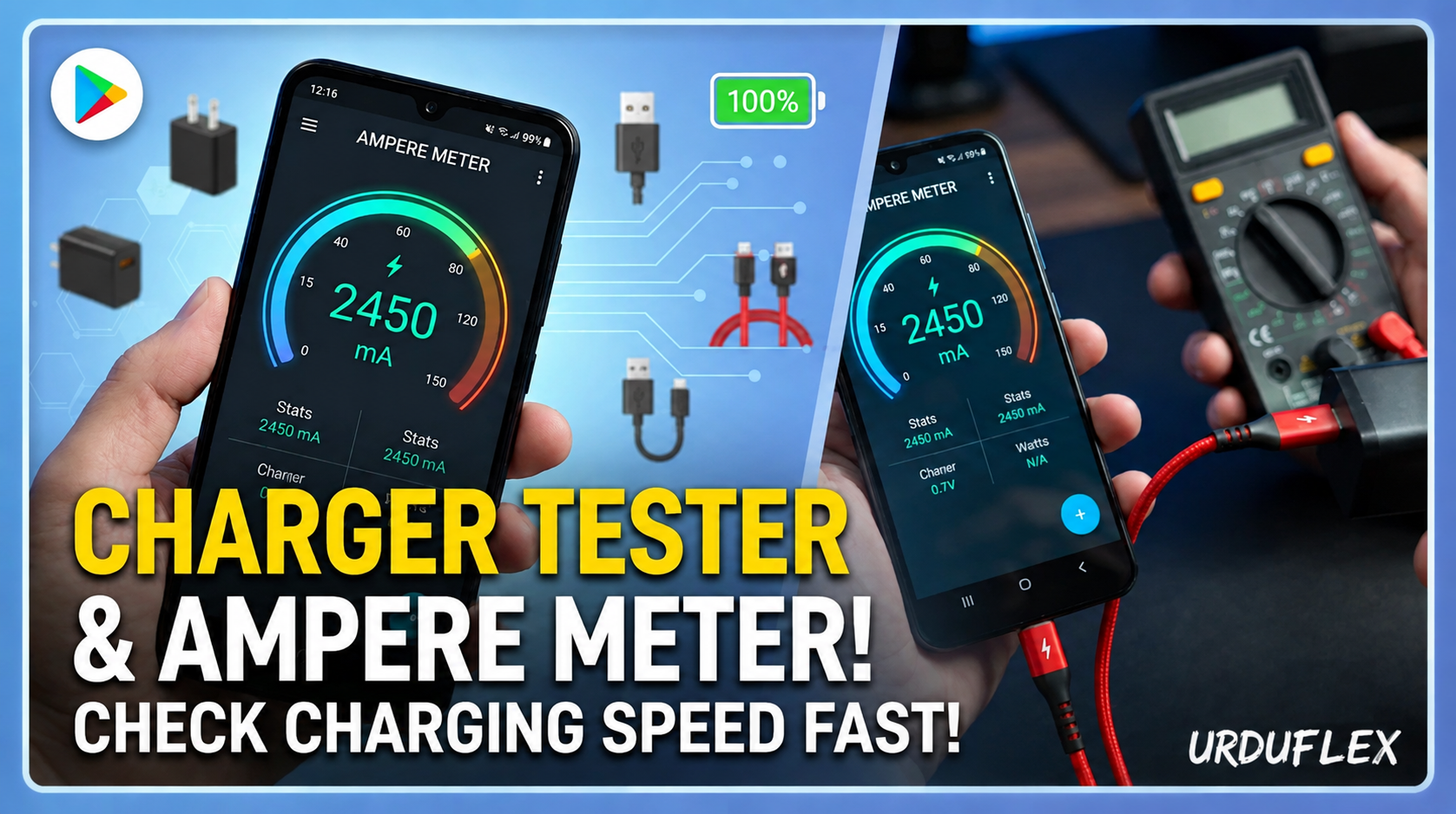
A smartphone battery may show a charging icon, but that does not always tell you whether your charger and cable are delivering the expected power. Slow charging, overheating, unstable charging, and frequent connection problems can sometimes be caused by the charger, USB cable, charging port, or the phone itself. This is where a Charger Tester & Ampere Meter for Android can be useful.
A charger testing application can display information such as charging current, battery voltage, temperature, battery percentage, and charging status. These readings can help Android users understand how their phone behaves while connected to different chargers and cables.
For people who frequently change chargers, use power banks, troubleshoot slow charging, or simply want to monitor battery performance, an ampere meter app provides a convenient way to observe charging information directly on the phone screen.
This guide explains what a Charger Tester & Ampere Meter app does, how it works, its major features, how to use it, safety considerations, and what users should know before downloading an APK.
What Is Charger Tester & Ampere Meter?
Charger Tester & Ampere Meter is a category of Android utility applications designed to monitor charging-related information. Depending on the device and Android version, the application may display real-time or estimated electrical measurements while the phone is charging.
Typical information can include:
- Charging current
- Battery voltage
- Battery temperature
- Battery percentage
- Charging status
- Battery capacity
- Charging type
- Estimated charging time
- Discharge rate
- Power information
The application uses battery and charging information exposed by the Android operating system and the phone’s hardware. Because Android devices use different battery controllers and sensors, the accuracy and availability of measurements can vary between phones.
An ampere meter application should therefore be considered a monitoring and diagnostic tool, rather than a laboratory-grade electrical measuring device.
Why Use a Charger Testing App?
Charging problems are common among smartphone users. A phone may suddenly charge slower than usual, show inconsistent charging speeds, or become unusually warm while connected to power.
Instead of immediately replacing the charger or battery, users can first monitor the available charging information.
For example, you can compare the behavior of:
- Original charger vs. another charger
- Different USB cables
- Wall charger vs. power bank
- USB-A vs. USB-C accessories
- Different charging adapters
- Charging at different battery percentages
This can help identify unusual behavior and give you a better understanding of your phone’s charging system.
Key Features of Charger Tester & Ampere Meter
1. Real-Time Current Monitoring
One of the main features of an ampere meter app is current monitoring.
The application may display charging current in milliamps (mA). When the phone is connected to a charger, the displayed value can change depending on battery level, temperature, charger capability, cable quality, and the phone’s charging system.
For example, the current may be relatively high when the battery is low and decrease as the battery approaches a higher charge percentage.
This information can be useful when comparing different charging accessories.
2. Battery Voltage Information
Battery voltage is another useful measurement.
The application may display voltage in volts (V). Monitoring voltage alongside current provides additional information about the battery’s charging condition.
However, users should not assume that a higher voltage always means faster or better charging. Modern smartphones use sophisticated charging systems that automatically regulate voltage and current.
The phone, charger, and charging protocol must work together to achieve the intended charging performance.
3. Battery Temperature
Temperature monitoring is particularly important during charging.
A charging application can display the battery temperature reported by the device’s temperature sensor. This helps users notice whether the phone is becoming unusually warm.
High temperatures can negatively affect lithium-ion battery longevity.
If your phone becomes excessively hot while charging, consider:
- Removing the phone case temporarily
- Moving the phone to a cooler location
- Avoiding intensive gaming while charging
- Checking the charger and cable
- Disconnecting the charger if the device becomes dangerously hot
Never attempt to cool a hot phone using extreme methods such as putting it in a refrigerator or freezer.
4. Battery Percentage
The app can display the current battery level while charging.
Although Android already shows the battery percentage, having it alongside current, voltage, and temperature makes the information easier to interpret.
You can observe how charging behavior changes from low battery levels through higher percentages.
5. Charging Status
A charging monitor can indicate whether the device is:
- Charging
- Fully charged
- Discharging
- Connected without actively charging
- Not connected to power
This can be helpful when troubleshooting situations where the phone repeatedly starts and stops charging.
6. Charging Type
Some applications can display charging-related information such as USB charging, AC charging, or other charging states exposed by the device.
The exact information depends on the Android version and manufacturer.
Some manufacturers also use proprietary fast-charging technologies, so a third-party application may not always correctly identify the exact commercial charging standard.
7. Charging History
Some Charger Tester & Ampere Meter applications provide historical statistics.
A history feature allows you to monitor charging behavior over multiple sessions.
You may be able to compare:
- Average charging current
- Charging duration
- Battery temperature
- Starting battery percentage
- Ending battery percentage
Long-term information can be more useful than looking at a single charging session.
8. Battery Health Information
Some charging utilities also provide battery health estimates.
These estimates may include:
- Estimated battery capacity
- Battery wear
- Charge cycles
- Battery health percentage
Keep in mind that third-party applications generally cannot directly measure every aspect of battery health. Many estimates are calculated from available system data and charging sessions.
For more accurate hardware diagnostics, professional service tools may be required.
How Does an Ampere Meter App Work?
An Android charging monitor does not normally measure electricity in the same way as a professional multimeter.
Instead, the application reads information made available by the phone’s operating system and battery-management hardware.
The general process works like this:
Step 1: Connect the phone to a charger.
Step 2: The phone’s charging controller detects the power source.
Step 3: Battery sensors and system components report available measurements.
Step 4: Android makes some of this information available to applications.
Step 5: The ampere meter app displays the readings.
Because different manufacturers use different hardware, readings can vary considerably between devices.
How to Test a Charger
Using a charger monitoring application is relatively simple.
Step 1: Install the App
Install a reputable Charger Tester & Ampere Meter application from a trusted source.
The Google Play Store is generally preferable because applications distributed through official stores undergo security and policy checks.
If you choose an APK file, verify that it comes from a trustworthy source and avoid modified versions.
Step 2: Open the Application
Launch the app before connecting the charger.
Review the available battery information.
Step 3: Connect Your Charger
Connect your normal charger and cable.
Wait several seconds for the charging information to stabilize.
Step 4: Check Current
Look at the displayed current measurement.
Remember that the value can fluctuate. A changing number does not automatically indicate a defective charger.
Step 5: Check Temperature
Observe the battery temperature during charging.
A moderate temperature increase can be normal, particularly during fast charging.
Step 6: Test Another Cable
Disconnect the charger and test another compatible cable.
Compare the readings under similar conditions.
Step 7: Compare Results
Repeat the test with another compatible charger if necessary.
Try to compare chargers under similar battery percentages because charging behavior changes as the battery fills.
Why Charging Current Changes
Many users expect the ampere reading to remain constant. In reality, charging current can change frequently.
Several factors affect it.
Battery Percentage
A phone may accept more power when the battery is relatively low. As the battery approaches full charge, the charging system typically reduces power.
Temperature
The phone may reduce charging power when the battery becomes warm.
Charger Compatibility
A charger may support a particular fast-charging protocol that another charger does not.
Cable Quality
A damaged or low-quality cable can affect charging performance.
Phone Usage
Gaming, video recording, GPS, hotspot usage, and other demanding activities consume power while charging.
Background Applications
Applications running in the background can also influence the net charging rate.
Charger Tester vs. Professional USB Meter
A phone application is convenient, but it has limitations.
A dedicated USB power meter physically measures electrical characteristics between the charger and device. An Android application generally relies on information reported by the phone.
Therefore, if you need precise electrical measurements, a physical USB tester may provide more useful information.
For everyday troubleshooting, however, an ampere meter application can be a convenient first step.
Benefits for Power Bank Users
Power banks are another area where charging monitors can be useful.
You can compare how quickly your phone charges from different power banks and determine whether a particular cable or power bank performs as expected.
This is particularly useful when traveling.
Instead of carrying several chargers without knowing which performs best, you can test compatible accessories before a trip.
Detecting Slow Charging
If your phone suddenly starts charging slowly, an ampere meter can help with basic troubleshooting.
Check the following:
- Test another cable.
- Try another compatible charger.
- Clean the charging port carefully.
- Check whether the phone is overheating.
- Compare charging performance at a similar battery percentage.
- Restart the phone.
- Check whether fast charging is enabled.
- Inspect the charging port for physical damage.
If multiple chargers and cables produce the same poor results, the problem may be related to the phone’s charging port, battery, charging controller, or software.
APK Download: What Should You Know?
Users searching for Charger Tester & Ampere Meter APK free download should be careful about where they obtain the application.
An APK is the installation package used by Android applications. Installing an APK manually can be useful when an app is unavailable through the Play Store, but it also introduces additional security risks.
Before installing an APK:
- Check the developer name.
- Verify the application’s reputation.
- Avoid suspicious modified versions.
- Scan downloaded files with reputable security software.
- Review requested permissions.
- Keep Android security protections enabled.
- Avoid APK websites filled with misleading download buttons.
A charging monitor should not normally require access to unrelated personal information.
If an application requests unnecessary permissions, consider choosing another app.
Avoid Modded Ampere Meter APKs
Some websites advertise “Pro Unlocked,” “Premium Mod,” or “Unlimited” versions of charging applications.
These modified APKs are not recommended.
A modified application may contain:
- Malware
- Advertising components
- Tracking software
- Unwanted permissions
- Altered code
- Security vulnerabilities
The small benefit of unlocking premium features is generally not worth compromising the security of your smartphone.
The safest option is to use the official version whenever possible.
Privacy Considerations
Charging applications can sometimes request access to device information.
Before installing an app, check its permissions and privacy policy.
A basic battery monitoring application should not need access to:
- Contacts
- SMS messages
- Call history
- Personal photos
- Microphone
- Location
unless a specific feature legitimately requires it.
Avoid applications that request excessive permissions unrelated to battery monitoring.
Tips for Accurate Charging Tests
For better comparisons, follow a consistent testing method.
Use the Same Battery Percentage
Compare chargers when the battery is at approximately the same percentage.
Use the Same Cable
When testing chargers, use the same high-quality cable whenever possible.
Avoid Using the Phone
Do not play games or stream high-resolution video during the test.
Allow the Reading to Stabilize
Wait a few minutes after connecting the charger before comparing numbers.
Monitor Temperature
Temperature can significantly influence charging performance.
Test Multiple Times
One reading is not enough to determine whether a charger is good or bad.
Common Problems
App Shows Zero Current
This may happen because the phone does not expose charging-current information correctly.
Try restarting the application or testing another compatible monitoring app.
Current Keeps Changing
Fluctuating readings can be normal. Charging controllers dynamically adjust power based on battery conditions.
App Shows Different Values Than Charger Label
This is also normal.
The number printed on a charger describes its output capability under specific conditions. It does not mean the phone will continuously draw that exact amount.
Fast Charging Does Not Appear
The application may not recognize the manufacturer’s proprietary fast-charging technology even when fast charging is working correctly.
Check the phone’s charging notification and manufacturer’s specifications as well.
Advantages and Disadvantages
Advantages
- Easy to use
- Useful for basic charging diagnostics
- Displays charging current
- Shows battery voltage
- Monitors temperature
- Helps compare cables and chargers
- Useful for power-bank testing
- Can provide charging history
- Usually lightweight
Disadvantages
- Measurements may not be perfectly accurate
- Hardware support varies between phones
- Some features may require premium access
- Free applications may contain advertisements
- APK installation carries additional security risks
- Some proprietary charging technologies may not be detected correctly
Who Should Use a Charger Tester?
This type of application can be useful for:
Android users: Monitor everyday charging behavior.
Travelers: Compare power banks and chargers.
Gamers: Check battery temperature during charging.
Tech enthusiasts: Monitor voltage and current.
Phone buyers: Test charging behavior on a new or used device.
Troubleshooters: Investigate slow or inconsistent charging.
Final Verdict
Charger Tester & Ampere Meter for Android can be a useful utility for anyone who wants more information about their smartphone’s charging behavior. By displaying current, voltage, temperature, battery percentage, and other available information, the app can help users understand how their charger and phone interact.
It is particularly useful when comparing charging cables, testing power banks, investigating slow charging, or monitoring battery temperature.
However, users should remember that Android applications are not replacements for professional electrical testing equipment. Measurements depend on the phone’s hardware, Android version, battery controller, and manufacturer software.
For the safest experience, download the official application through a trusted app store whenever possible. If you install an APK manually, use a reputable source and avoid modified or suspicious versions.
With sensible use, a Charger Tester & Ampere Meter can turn your Android phone into a convenient charging-monitoring tool and help you make better decisions about chargers, cables, and battery usage.